In chemistry, we do a lot of labs that require some indepth calculations. Many times, students wait until the last minute, screw up the calculations and it becomes both a nightmare to grade and for the student.
Last semester I had the bright idea that I’d make sheets that students must log into through Canvas to input their data and answers. Then, through a lot-lot-lot of IF/THEN statements, Functions and Conditional Formatting (I could do a whole separate blog on that), things would pop up red if the student incorrectly did the problems. This makes it easy to grade, it gives the student incentive to start early, and informs the students if they are doing the problem right or wrong without giving them an answer. It also allows for comparison of unknowns and all kinds of fun stuff. Like I said. Its indepth, I love it, but I could write a semester’s worth of blogs on each calculation that’s done.
Suffice to say, I’m going to cover how to embed a Google sheet into a Canvas page. But Cook, you ask, if students can get in and edit things, can’t they mess with another students answers? Or just copy? To which I reply, why are you in my bedroom at 1am? But also, that I’ll get to that.
First, you need to generate a Page (go check my how to embed Youtube vids on how to do that) and create your Google sheet. Go into the Page and hit that little down arrow that says External Tools when you hover over it, as shown below.
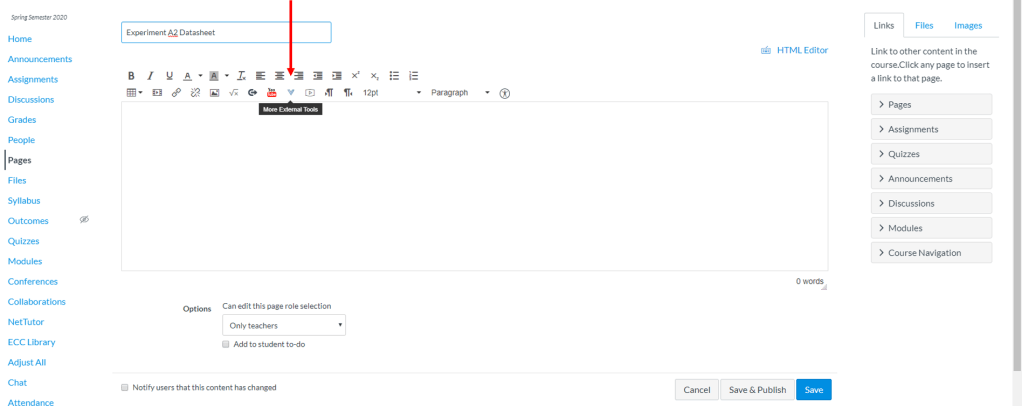
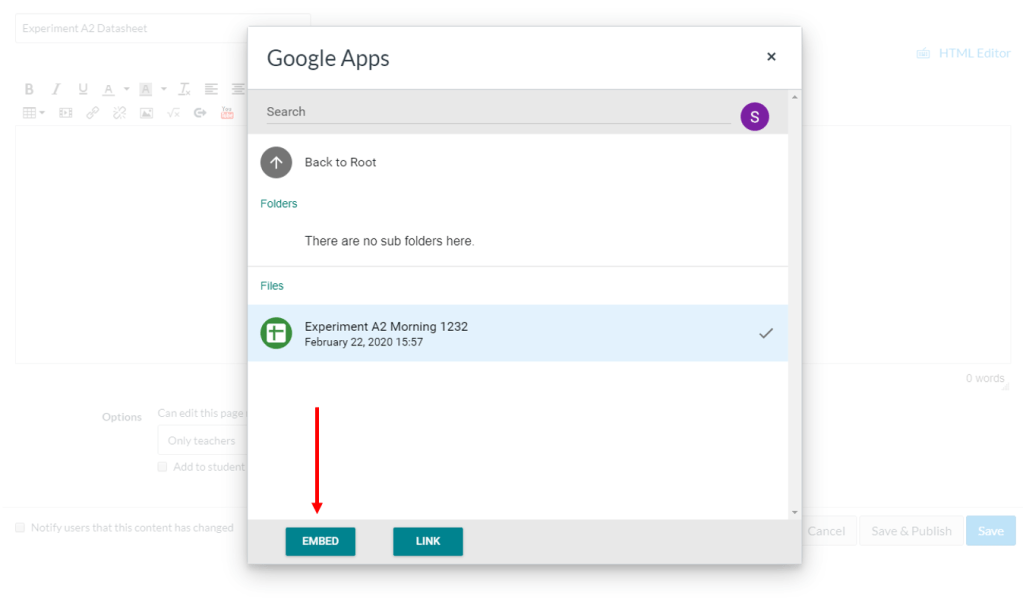
Shuffle down to Google Docs, log in if you need to (HINT HINT, LOG INTO AN ACCOUNT THAT YOUR STUDENTS SHARE. For example, most schools have a Google Drive system. Log into your account to make the Sheet. It’ll help, I’ll show why in a minute). Find the Sheet and click it. I like to Embed. But its up to you what you do.
So there’s two problems I ran into when I first started this. Let’s take care of the easy one first… the dang window is too small and there’s no ready way that I’ve seen to adjust the embedded doc. So what do you do? On the page, go to the upper right hand corner where it says HTML Editor. You’ll get something like below:
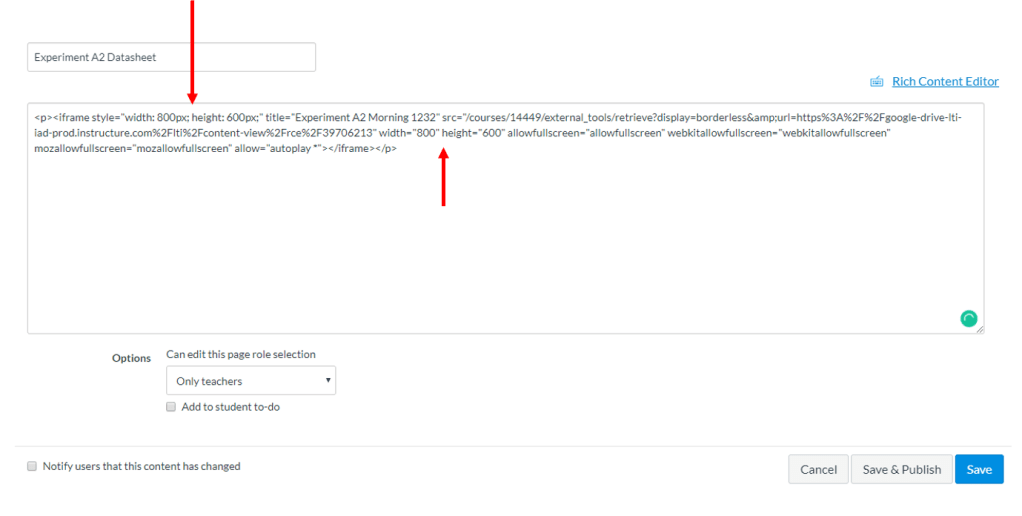
Where I’ve got the arrows, there are a width and height. Here you can change the embedded size. I usually throw an extra 400 pixels onto each, but you can adjust it. I’ve thought about limiting the height to one row so that students don’t accidentally type on another student’s row, but I’m happy with the way things are now.
The other problem is how to track changes. I trust students… but I don’t. I know someones always gonna try and scam, so I try to cut that out as much as possible. In this case, what I did was make it so a student has to log into their El Camino account in order to edit the document. To do this, in the Google Sheet, you click on Share in the upper right:
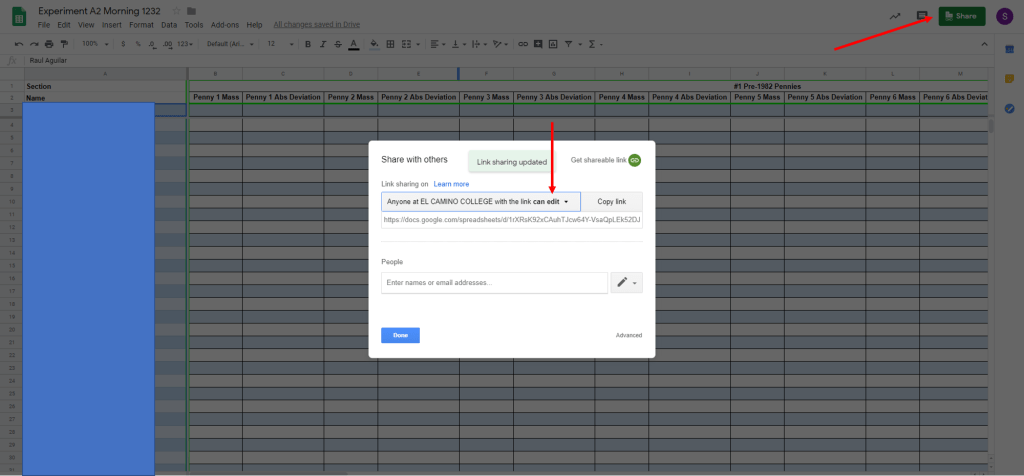
From there, you can set on the Link how you want students to be able to edit. I have it set as Anyone at EL CAMINO College can edit. In Google Sheets, you can then go to File and track any changes and who made them.
So that’s that. I love these little sheets because it combines two different places into one, and does some real interesting stuff. If you’re good with Excel, by a little front end work, you can save yourself a lot of work on the back end. Then you’re really cookin’ with gas…
Speaking of cooking, I know I said recipes wouldn’t be on here, but did you know you can cook chicken breast in a crockpot? I threw some boneless-skinless into a crockpot, wrapped in bacon and with a little covering of garlic sauce, set that thing on high for four hours and… holy crap. It’s amazing. Crockpots are freaking amazing.
 The Canvas Cookbook
Great system you have here. You seem to have thought of everything.
LikeLike